
Connect ChatGPT to SciSure Research
SciSure MCP: Overview · ChatGPT (OpenAI) · Claude · LM Studio · Open WebUI · Other MCP applications
Add SciSure Research as a custom MCP plugin in ChatGPT, authenticate with a SciSure OAuth client, and use authorized research tools in a conversation.
Requirements for connecting to SciSure MCP
SciSure MCP requires a Private Cloud or On-premises SciSure Research environment. It is not available on the shared Cloud.
ChatGPT connects to the public SciSure MCP endpoint and signs each user in through a SciSure OAuth client.
- ChatGPT plugin access — Your account and workspace policy must allow Developer mode and custom plugins.
- SciSure group settings — You need permission to create an OAuth2 client and select its scopes.
- Reachable HTTPS endpoint — OpenAI’s service must be able to reach your SciSure Research MCP endpoint over public HTTPS.
Availability of Developer modeDeveloper mode availability can depend on your account and workspace policy. OpenAI also requires a reachable HTTPS MCP endpoint for this direct setup. See the official OpenAI connection and testing guide.
How the connection works: ChatGPT → SciSure OAuth → SciSure MCP
1. Allow custom MCP plugins
In ChatGPT, open Settings → Security and login, then turn on Developer mode.
Only connect to servers you trustDeveloper mode allows unverified connections that can access or modify data. Only connect to an MCP server you trust and review its requested access before continuing.
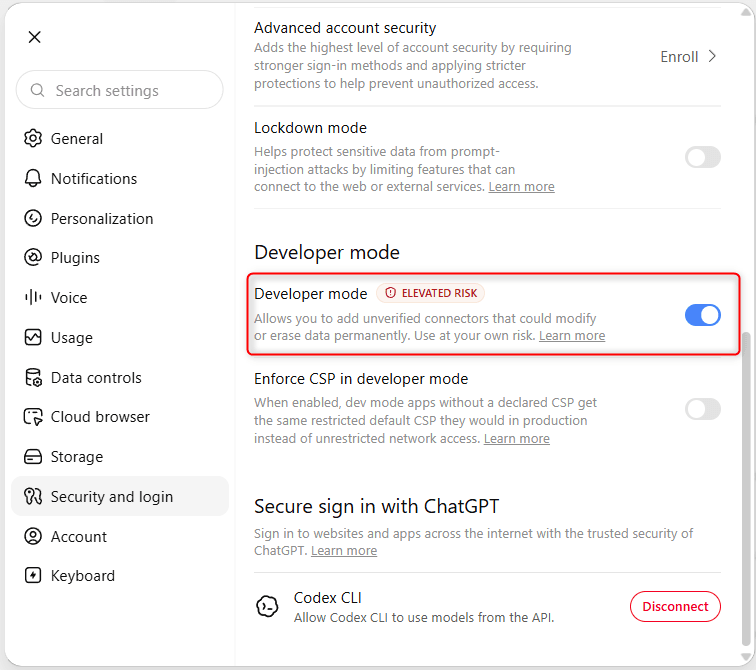
Settings → Security and login → Developer mode.
2. Open the plugin browser
Go to Settings → Plugins, select Browse plugins, and use the + button to start a new plugin.
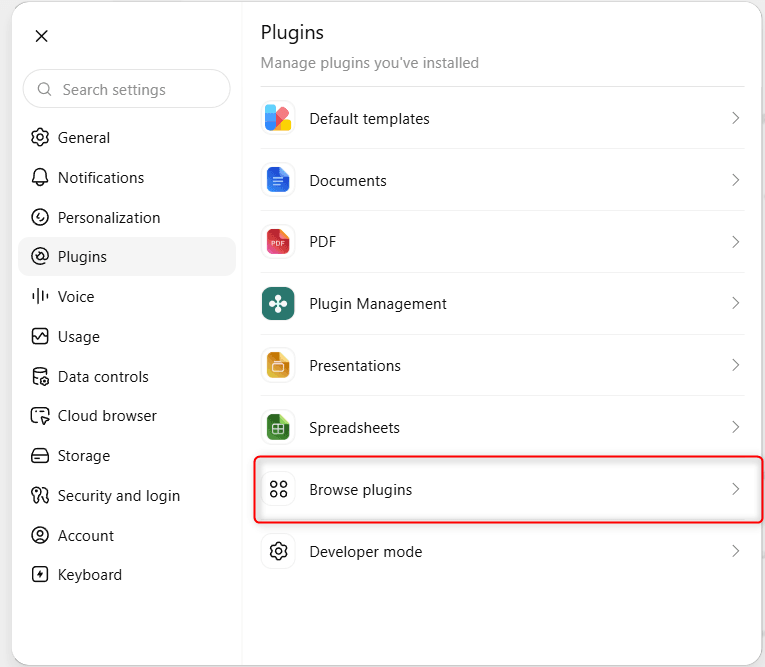
Open Browse plugins from ChatGPT Settings.
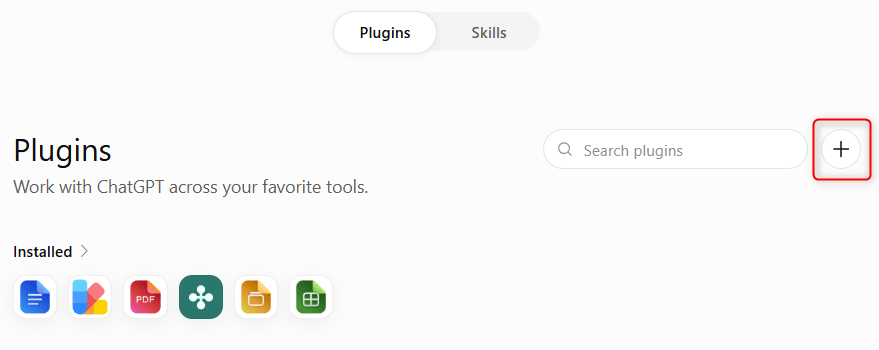
Select + to add a custom plugin.
3. Enter the SciSure MCP connection
Name the plugin, select the server URL connection method, and enter your SciSure Research MCP endpoint.
SciSure Research MCP endpoint
https://<your-instance>/api/v1/mcp- Set Name to SciSure MCP.
- Keep Server URL selected and replace
<your-instance>with the base URL you use to sign in to your SciSure Research environment (for exampleacme.elabnext.com). Your instance also publishes its configuration at<your-instance>/.well-known/oauth-authorization-server. - Set Authentication to OAuth.
- Review the custom-server warning and select I understand and want to continue.
- Do not select Create yet; configure OAuth first.
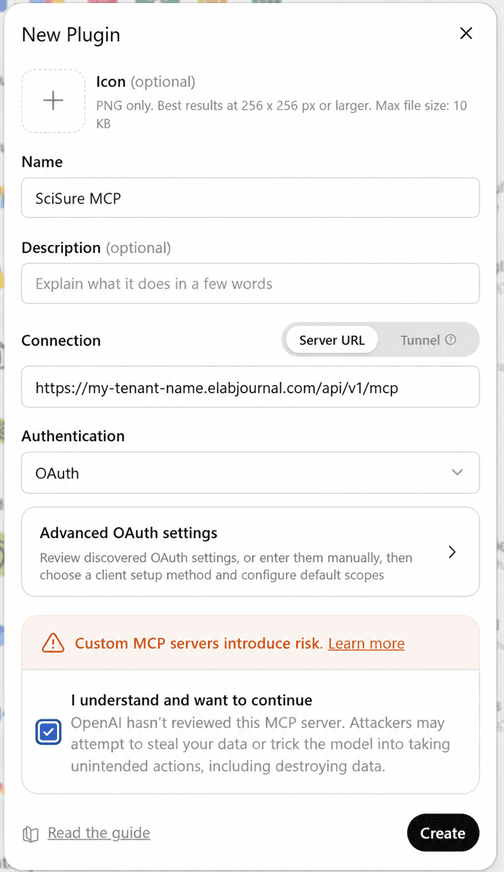
The screenshot usesmy-tenant-nameas an example. Use your own instance base URL.
4. Copy the ChatGPT callback URL
Open Advanced OAuth settings, let ChatGPT discover the SciSure OAuth configuration, and choose User-Defined OAuth Client.
- Wait for ChatGPT to finish loading the discovered OAuth settings.
- Set Registration method to User-Defined OAuth Client.
- Copy the unique Callback URL shown by ChatGPT. You will register it in SciSure Research in step 5.
- Review the discovered default scopes, such as
experiment_read,protocol_read,sample_read,task_read, andprofile_read.
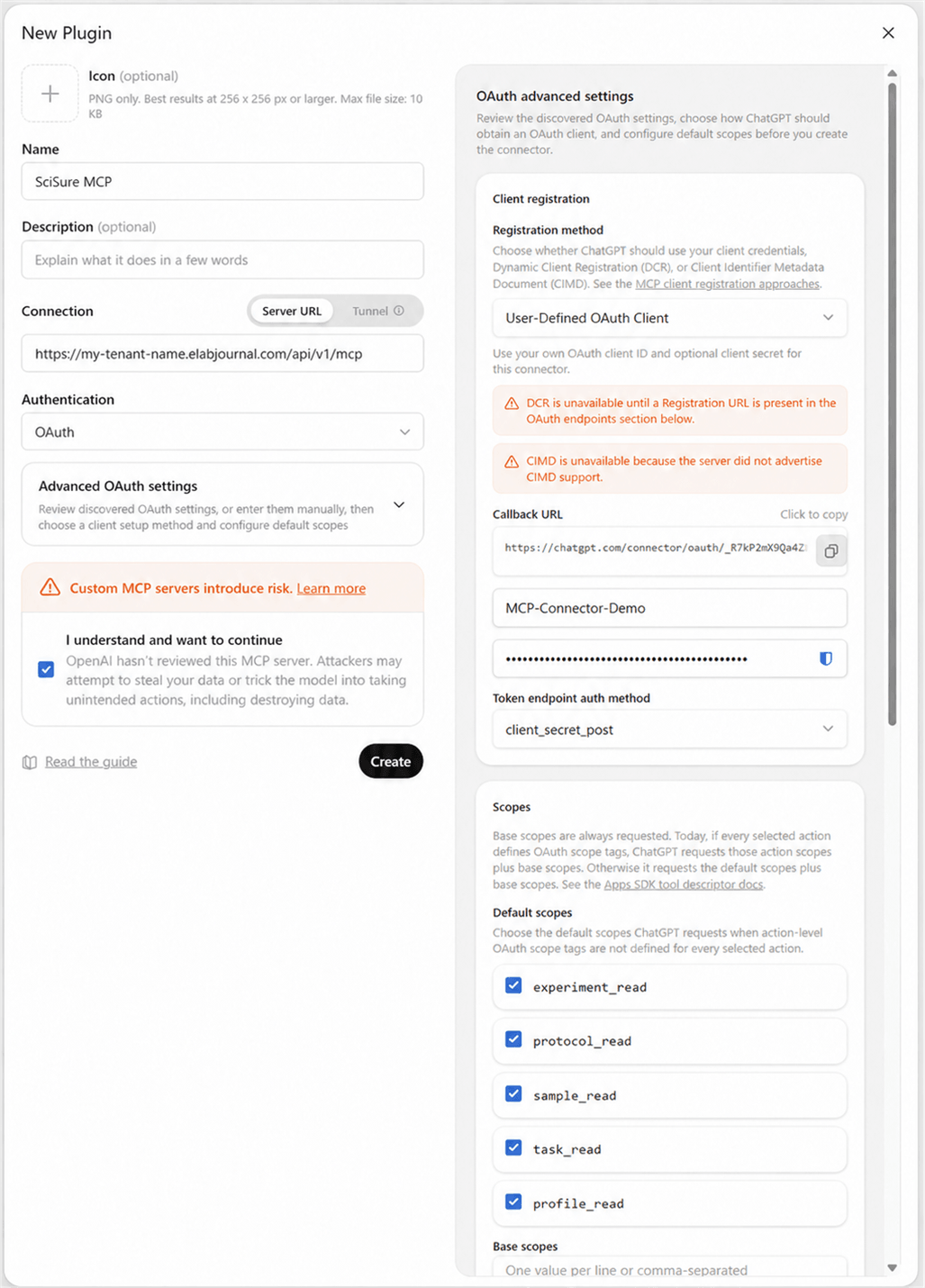
Copy your unique callback URL, then use the Client ID and Client Secret created in SciSure Research. The callback identifier and credentials shown are randomized examples.
Notices about automatic registrationChatGPT may show notices about automatic OAuth client registration in this view. They do not block this procedure, which deliberately uses a user-defined OAuth client.
5. Register ChatGPT in SciSure Research
In SciSure Research, go to Group Settings → OAuth2 Clients and add a new application for ChatGPT.
- Set Application name to a recognizable value, such as ChatGPT SciSure MCP.
- Set a unique Client ID, such as ChatGPT-SciSure-MCP.
- Paste the unique Callback URL copied from ChatGPT into Redirect URIs.
- Select the scopes shown in ChatGPT. Use Read only when ChatGPT only needs to retrieve data.
- Create the application and retain its Client ID and Client Secret.
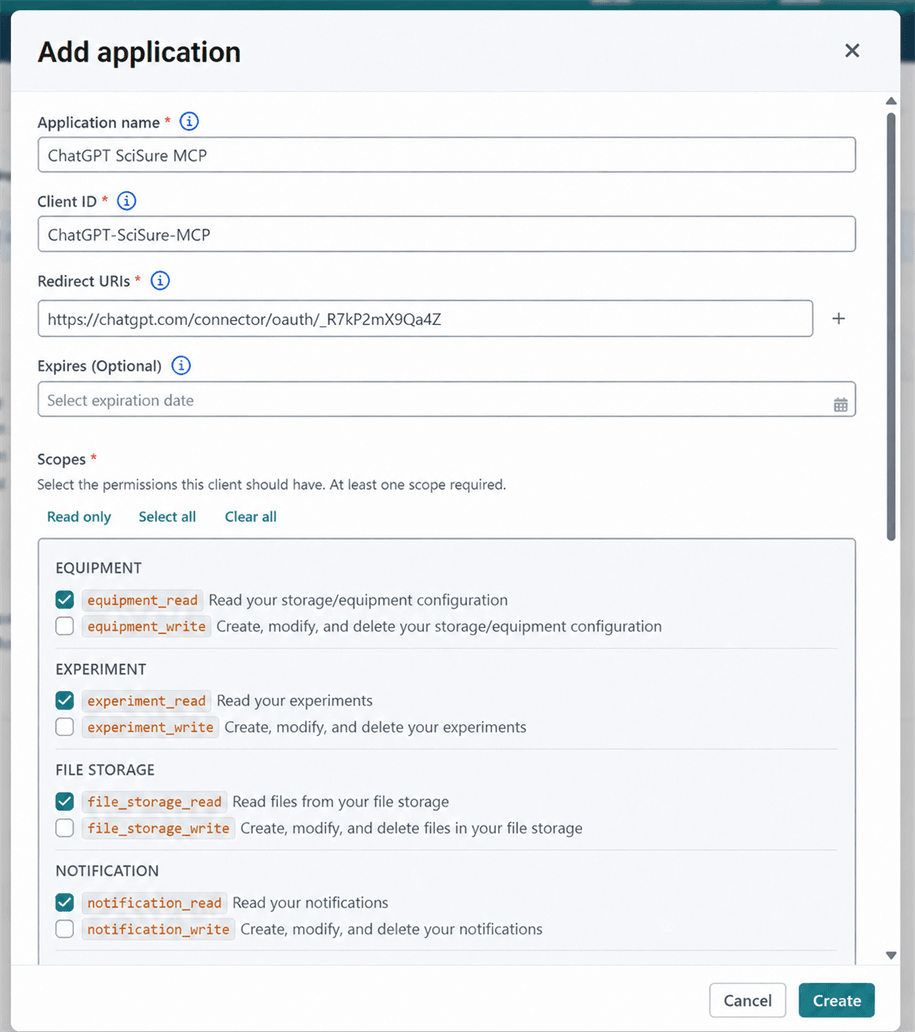
The callback URL in the screenshot uses a randomized example identifier. Copy the unique URL shown in your own plugin settings.
Copy the callback URL exactlyA redirect URI mismatch stops authentication. Copy the Callback URL from ChatGPT exactly, without adding or removing any characters.
Return to ChatGPT
Enter the credentials SciSure Research generated, confirm the selected scopes, and finish creating the plugin.
- Enter the SciSure OAuth Client ID and Client Secret.
- Keep Token endpoint auth method set to
client_secret_post. - Confirm the default scopes and select Create.
Keep the Client Secret privateThe Client Secret is sensitive. Never publish it in documentation, screenshots, messages, or source control.
6. Authorize ChatGPT in SciSure Research
After the plugin is created, ChatGPT prompts you to connect the SciSure account.
- Select Sign in with SciSure MCP.
- Sign in to your SciSure Research tenant if prompted.
- Review the application name and requested scopes.
- Approve the connection and return to ChatGPT.
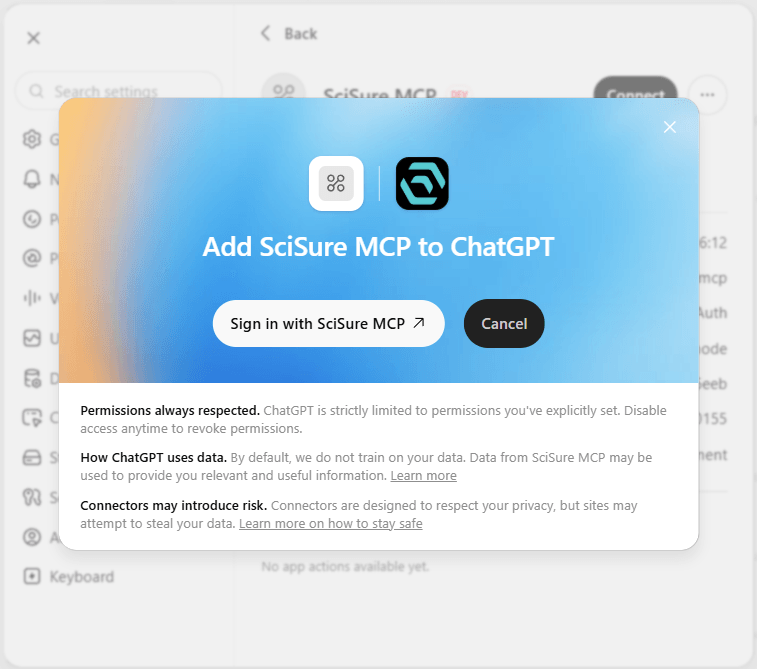
Select Sign in with SciSure MCP to start the OAuth authorization flow.
7. Verify that SciSure MCP is installed
Return to the SciSure MCP plugin details and confirm that it lists your tenant URL and OAuth under the connection information.
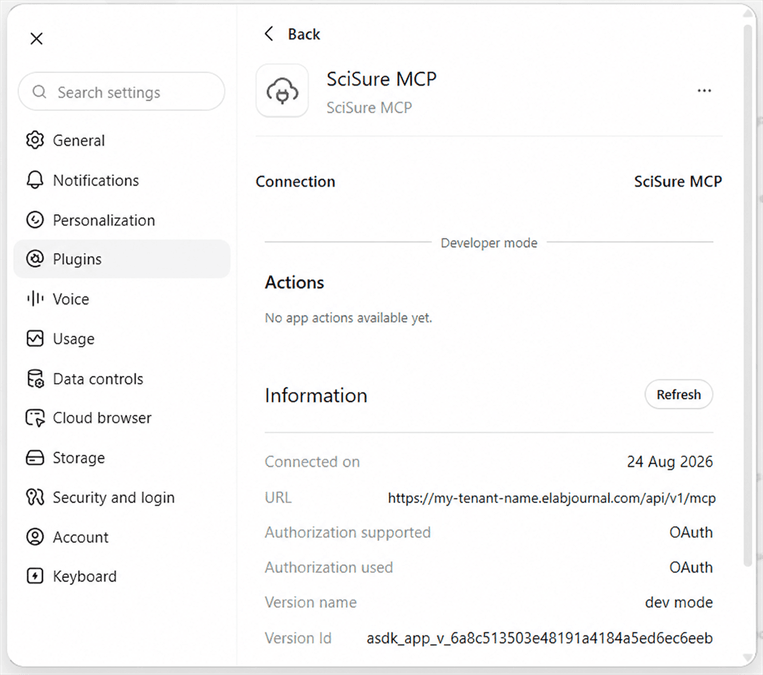
The connected plugin shows the tenant MCP URL and OAuth authorization information.
Plugin installedSciSure MCP is installed and authenticated. You can now enable it in a ChatGPT conversation.
8. Use SciSure MCP in a new chat
Start a new chat, open the tools menu with +, and select SciSure MCP.
Don’t see SciSure MCP?Refresh the ChatGPT page, start a new chat, and open the + tools menu again.
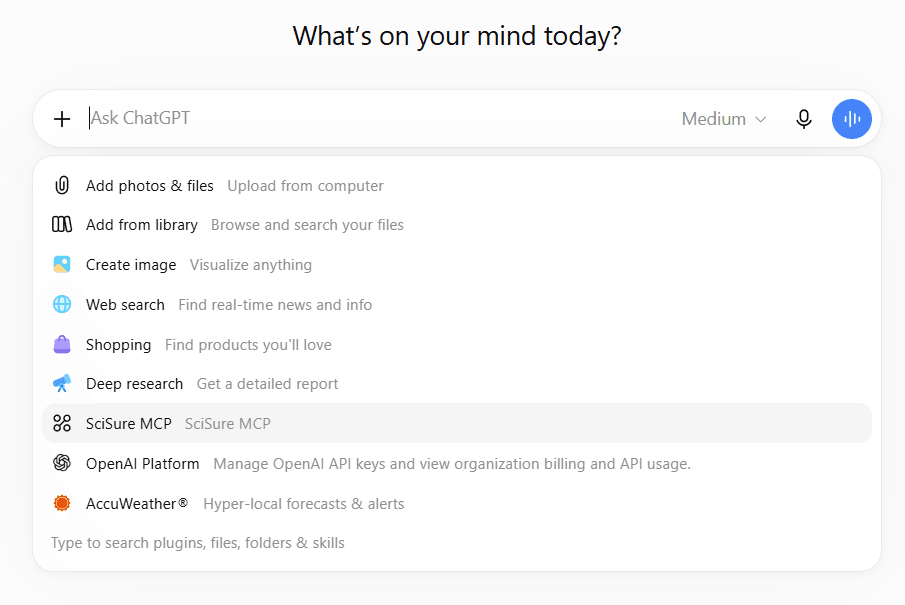
Select SciSure MCP from the tools menu.
Ask a test question
Example prompt
How many experiments do I have?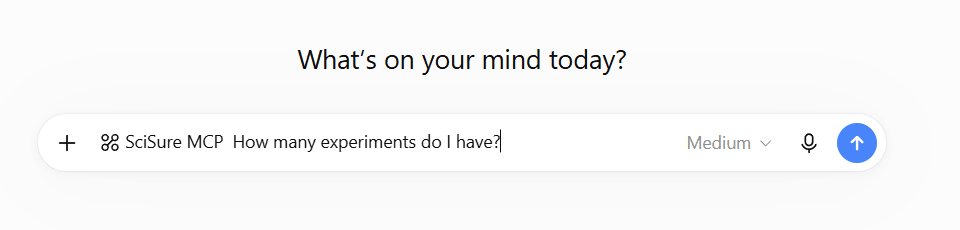
SciSure MCP appears beside the prompt when it is active for the conversation.
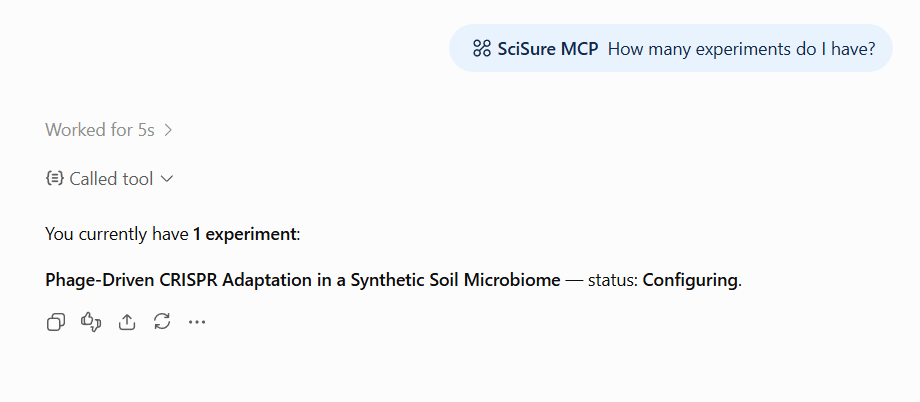
A successful response shows the SciSure MCP tool call and returns authorized SciSure Research data.
ConnectedYou are connected. ChatGPT can now use the SciSure tools permitted by the OAuth scopes and the authenticated user’s SciSure Research access.
Common connection issues
Check these items before recreating the plugin.
Developer mode or the + button is not available
Confirm your ChatGPT account and workspace policy allow Developer mode and custom plugins. If settings are managed centrally, contact the workspace administrator.
ChatGPT cannot reach the SciSure endpoint
Confirm the configured URL is exactly https://<your-instance>/api/v1/mcp, uses HTTPS, and is publicly reachable from OpenAI’s service.
OAuth settings do not load
Wait for discovery to finish, then recheck the tenant URL and the SciSure authorization-server metadata. The endpoint must be reachable before ChatGPT can discover OAuth.
The OAuth redirect is rejected
Copy the unique Callback URL from ChatGPT again and make sure the SciSure OAuth client uses it exactly, with no added or missing characters.
Sign-in fails or repeats
Recheck the SciSure OAuth Client ID, Client Secret, selected scopes, redirect URI, and client_secret_post token authentication method.
SciSure MCP is missing from a new chat
Refresh the ChatGPT browser tab, start a new conversation, open the + menu, and select SciSure MCP.
A SciSure tool is missing
Confirm the corresponding scope is enabled on the SciSure OAuth client, then refresh or reconnect the plugin so ChatGPT receives the updated authorization.