
Connect Claude to SciSure Research
SciSure MCP: Overview · ChatGPT (OpenAI) · Claude · LM Studio · Open WebUI · Other MCP applications
Add SciSure Research as a custom connector in Claude, authenticate with your SciSure OAuth client, and make authorized research tools available in a conversation.
Requirements for connecting to SciSure MCP
SciSure MCP requires a Private Cloud or On-premises SciSure Research environment. It is not available on the shared Cloud.
Claude connects to the public SciSure MCP endpoint and signs each user in through a SciSure OAuth client.
- Claude connector access — Your Claude account must provide Settings → Connectors and the option to add a custom connector.
- SciSure group settings — You need permission to create an OAuth2 client and select its scopes.
- Reachable SciSure endpoint — Claude’s service must be able to reach the SciSure MCP endpoint over HTTPS.
On-premises: allowlist Anthropic’s IP rangesOn-premises deployments: connector requests originate from Anthropic’s service. Allowlist the current outbound ranges listed in the official Anthropic IP address documentation. Private Cloud environments may already have this network access configured.
How the connection works: Claude → SciSure OAuth → SciSure MCP
1. Register Claude in SciSure Research
In SciSure Research, go to Group Settings → OAuth2 Clients and add a new application for Claude.
Claude redirect URI
https://claude.ai/api/mcp/auth_callback- Enter a recognizable application name, such as Claude SciSure MCP.
- Use the redirect URI shown above exactly.
- Select the required scopes. Choose Read only when Claude only needs to retrieve data.
- Create or update the application and retain its Client ID and Client Secret.
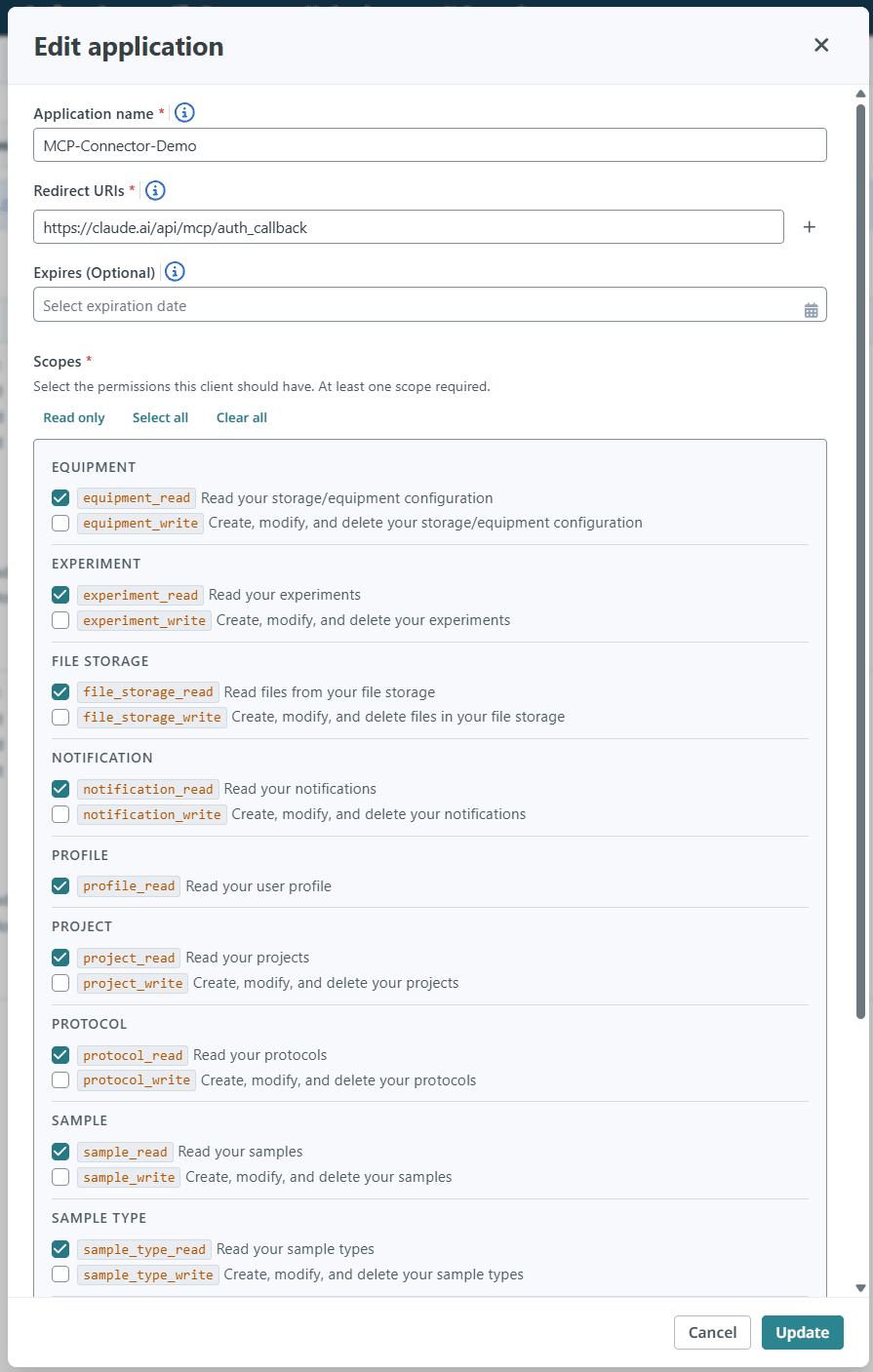
Register the Claude callback URL and select only the scopes the connector needs.
2. Start a custom connector in Claude
Open Claude’s Settings, select Connectors, open the Add menu, and choose Add custom connector.
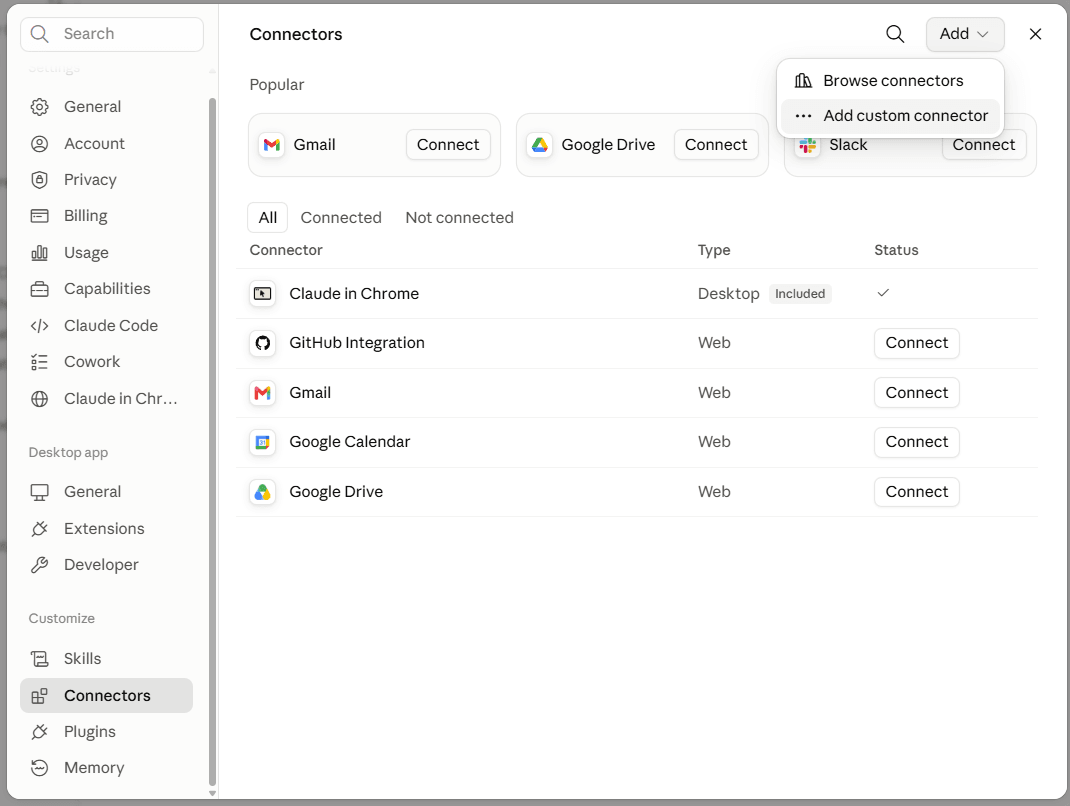
Settings → Connectors → Add → Add custom connector.
3. Enter the SciSure MCP connection
Give the connector a recognizable name and enter the approved SciSure Research MCP endpoint.
Your MCP endpoint: Replace <your-instance> with the base URL you use to sign in to your SciSure Research environment (for example acme.elabnext.com, acme.elabjournal.com, or a custom domain for self-hosted deployments). Your instance also publishes its configuration at <your-instance>/.well-known/oauth-authorization-server.
Connector name and URL
https://<your-instance>/api/v1/mcp- Set the connector name to SciSure-MCP.
- Paste the endpoint shown above.
- Select Continue.
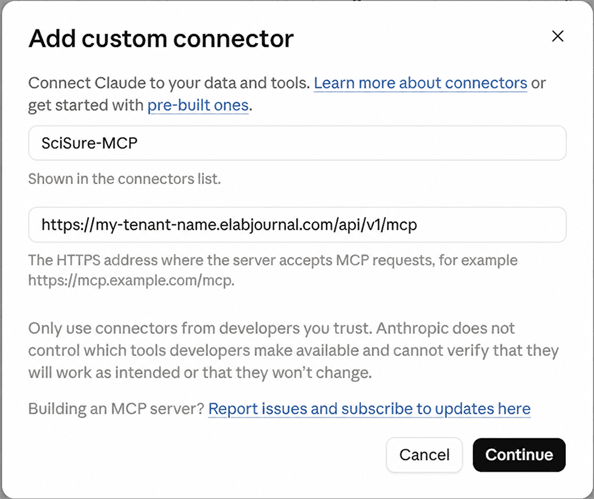
UseSciSure-MCPand the exact endpoint shown in this guide.
4. Use your SciSure OAuth client
Claude detects OAuth support. Keep authentication set to Always required, choose Use your own OAuth client, and enter the credentials from step 1.
- Confirm Always required is selected under Authentication.
- Select Use your own OAuth client.
- Enter the SciSure OAuth Client ID and Client Secret.
- Select Add.
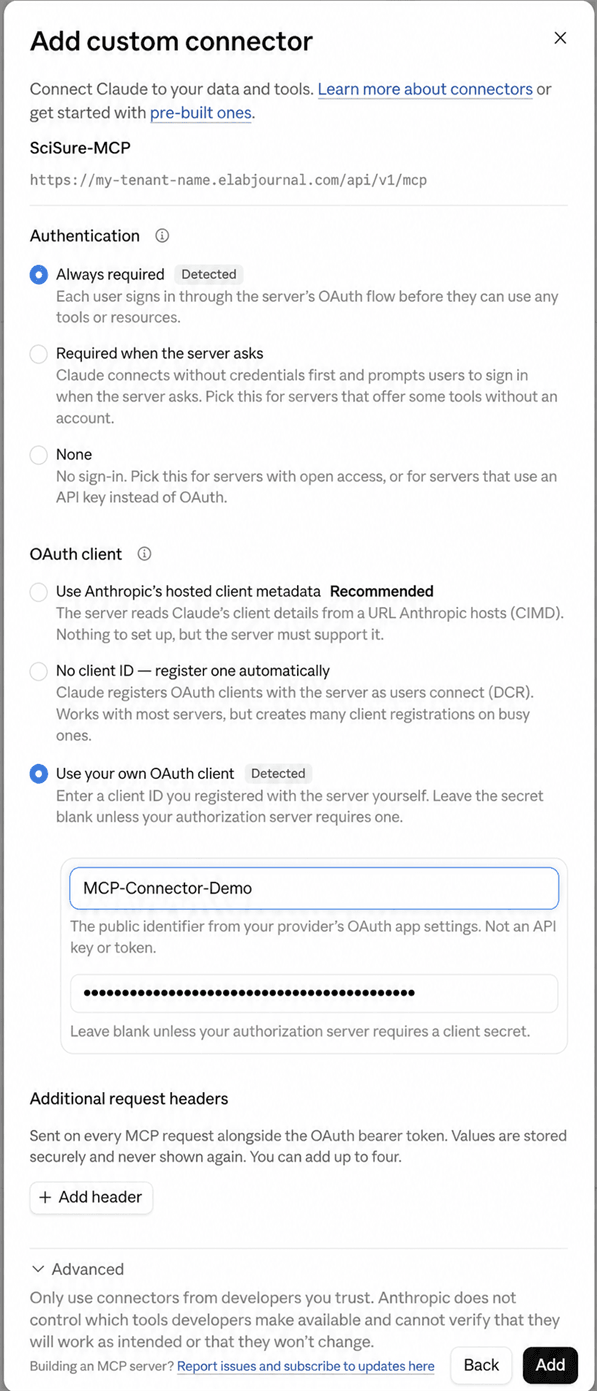
Use the OAuth credentials created in SciSure Research.
Keep the Client Secret privateThe Client Secret is sensitive. Never publish it in documentation, screenshots, messages, or source control.
5. Reconnect and complete authorization
Immediately after adding the connector, Claude may show Connection issue because authentication has not yet completed. Select Reconnect to start the sign-in flow.
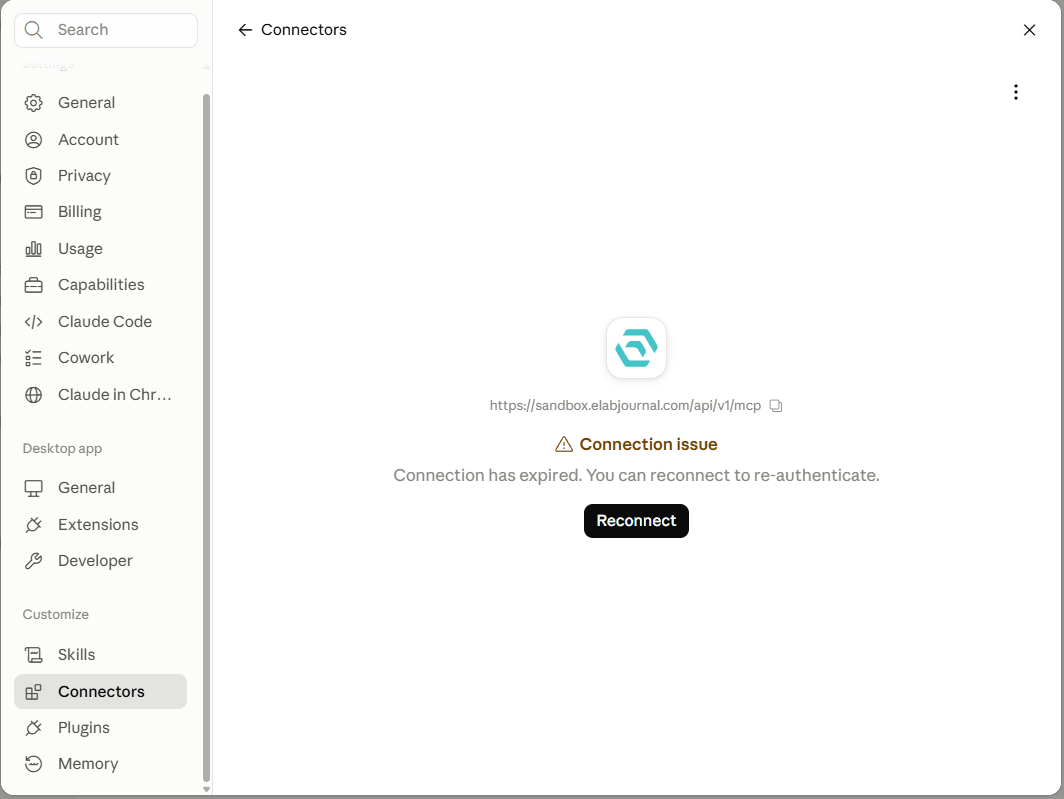
This initial state is expected. Select Reconnect to authenticate.
- Sign in to SciSure Research if prompted.
- Review the application name and requested permissions.
- Approve access when the application and scopes match your configuration.
- Return to Claude after authorization finishes.
6. Review the tools and use SciSure in a chat
After authentication, the connector lists the SciSure tools Claude can use. Review their permissions, enable SciSure-MCP in a conversation, and test the connection.
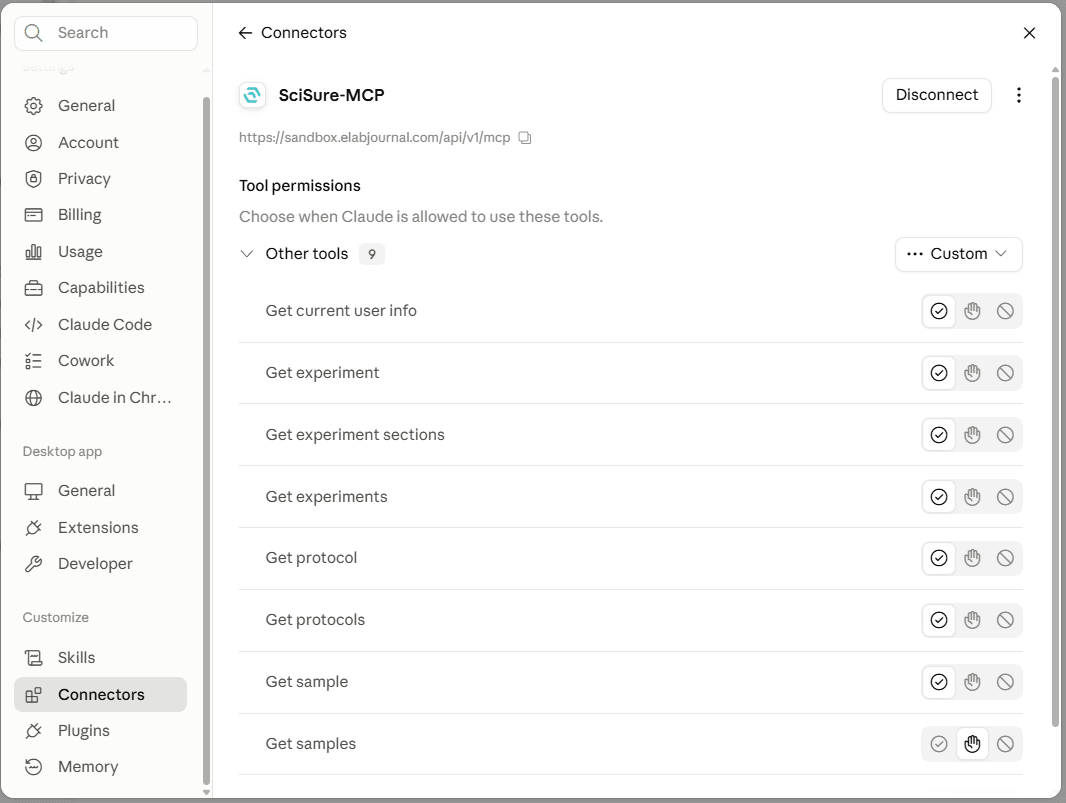
Review each available tool and choose when Claude may use it.
Enable the connector in the conversation
From the chat prompt, select +, open Connectors, and switch SciSure-MCP on.
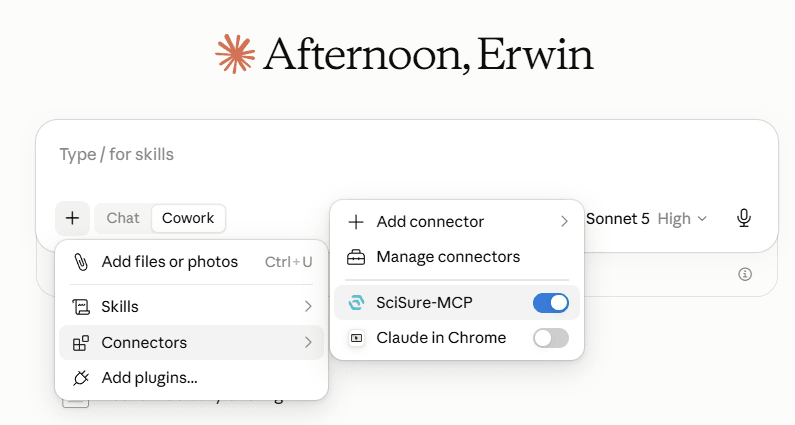
Enable SciSure-MCP for the conversation.
Ask a test question
Example prompt
How many experiments do I have?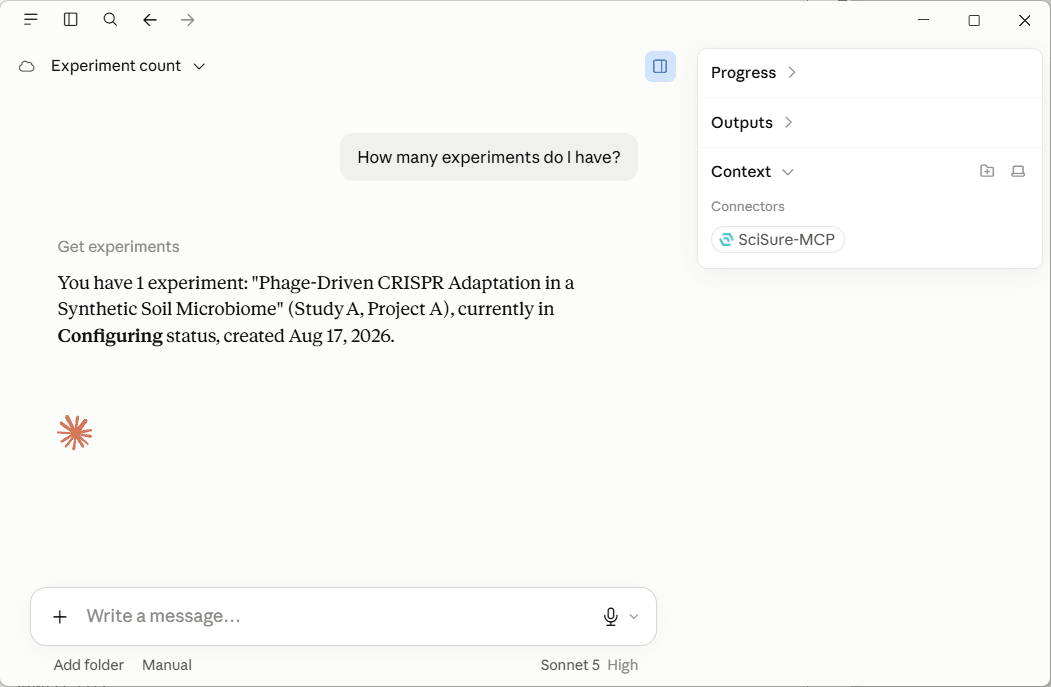
A successful response shows SciSure-MCP in the conversation context and uses a SciSure tool.
ConnectedYou are connected. Claude can now use the SciSure tools permitted by the OAuth scopes, tool settings, and authenticated user’s SciSure Research access.
Common connection issues
Check these items before recreating the connector.
Add custom connector is not available
Confirm that your Claude account and workspace provide custom connector access. If the option is managed centrally, ask the Claude workspace administrator.
Claude cannot reach the SciSure endpoint
Confirm the configured URL is exactly https://<your-instance>/api/v1/mcp. For on-premises deployments, verify that the current Anthropic outbound IP ranges can reach the SciSure server.
The OAuth redirect is rejected
Confirm the SciSure OAuth client uses https://claude.ai/api/mcp/auth_callback exactly.
The connector shows Connection issue
If it has just been added, select Reconnect and complete authentication. If authentication already occurred, recheck the Client ID, Client Secret, and OAuth client status.
A SciSure tool is missing
Confirm the corresponding scope was selected for the SciSure OAuth client, reconnect to refresh authorization, and review the connector’s tool-permission settings.